Wednesday, June 25, 2008

Error: User receives an OpenProtectedDatabase error when trying to open a Trial Balance or Trial Balance Report

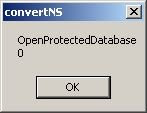
Error: A user receives an OpenProtectedDatabase error (see picture below) when trying to open a Trial Balance or Trial Balance Report.


Cause: When Excel is forced to close (e.g. is terminated through the Windows Task Manager), the .ldb file associated with the open Trial Balance or Trial Balance Report is not deleted.


Resolution: Follow the steps below.


  1. 1. Open a Windows Search window (e.g. select Search from the Start menu)

  2. 2. Search for all files with a .ldb extention (you may also want to limit the search to C:\Pfx Engagement for faster results)

  3. 3. Right-click on the resulting file and select Open Containing Folder

  4. 4. Select the .ldb file and press delete

  5. 5. Close the containing folder and the Search window

Error: Toolbar buttons are off by one

Issue: The toolbar buttons in the File Room or Binder windows are off by one.

Cause: This is usually caused after an upgrade to Engagement.

Resolution: Follow the steps below.
  1. 1. In Engagement, navigate to Tools Customize from the toolbars
  2. 2. Press the Reset Toolbar button
  3. 3. Press Close

Monday, June 23, 2008

How To: Turn off Track Changes in Word

Issue: Some users have begun to use Word's Track Changes functionality to have an audit trail on the changes within memos and other Word documents. Not all users are familiar with Track Changes and cannot turn it off.

Resolution: Follow the steps below to turn off Track Changes.
  1. 1. While the document is open, make sure the "Reviewing" toolbar is viewable (right-click on any of the toolbars and select "Reviewing")
  2. 2. Press the button second from the far right so it is NOT highlighted yellow (this turns off Track Changes)
  3. 3. Press the dropdown arrow to the right of the button with the blue checkmark
  4. 4. Select "Accept All Changes in Document"
  5. 5. Save and close the document

Be aware that a user can go through each change individually and decide which changes should be accepted or rejected instead of accepting or rejecting all changes in the document. For a more in-depth discussion of Track Changes, please refer to this Microsoft document.

Saturday, June 21, 2008

How To: Remove all tickmarks in an Excel document at the same time

Issue: Many users have asked if there is a way to remove all the tickmarks from an Excel document at the same time. This especially applies when a binder is rolled forward and the workpaper is marked as "Rollforward." When a workpaper is rolled forward, all the tickmarks stay the same.

Resolution: There is native functionality in Excel (and Word for that matter) that allows a user to remove any or all of the shapes in the document at the same time. Excel considers tickmarks to be shapes so this options works well. One button will have to be added to a toolbar in Excel to get this option. The steps for adding the toolbar button and actually deleting the tickmarks are below.

Add Toolbar Button
  1. 1. In Excel, go to View Toolbars Customize or right-click on the any toolbar and select Customize at the bottom of the pop-up menu
  2. 2. Click on the Command tab
  3. 3. In the left panel, select Drawing
  4. 4. In the right panel, click and drag Select Multiple Objects to an existing toolbar
  5. 5. Click Close

Removing Tickmarks

  1. 1. Click the Select Multiple Objects button just added to the toolbar
  2. 2. Select objects to be removed (see NOTE below)
  3. 3. Click OK
  4. 4. Press the Delete key on the keyboard

NOTE: As a practicle matter, some workpapers can have a large number of tickmarks on them. In those cases, it may make more sense to press Select All in step 2. of Removing Tickmarks instead of selecting each tickmark individually. If this is done, be sure to uncheck each shape that is not a tickmark. The names of the shapes will help in differentiating between tickmarks and other shapes. Tickmarks are added as pictures and other shapes, such as textboxes and arrows, are added using different names.

Tuesday, June 17, 2008

Error: Workpapers won't open

Issue: Some users report that workpapers won't open when double clicked from within a binder or the application freezes when opening (e.g., Excel freezes).

Causes and Resolutions: This has a few possible causes:

  1. 1. A prompt window has opened behind the main window of the target application.

    For example, when opening a locked workpaper Engagement can be set to warn the user that the workpaper is read-only. The warning window may open behind the Word or Excel shell. The user will have to select another application, such as Outlook or Internet Explorer, and then move back to the workpaper application.

  2. 2. Microsoft Office applications didn't close properly.

    Sometimes when a user closes Word or Excel, the workpaper closes and the shell of the application disappears but the application is still running in the background (i.e. still shows under the Processes tab in the Windows Task Manager). Enter the Windows Task Manager (press Ctrl-Alt-Del and select Task Manager). Find the appropriate application in the Processes tab and select it then press the "End Task" button in the lower right corner of the window. A warning box will pop-up asking if this is really what the user wants to do. Click "Yes". Try to open the workpaper again from within the binder.

  3. 3. Adobe Acrobat is open as a plug-in or add-in to Internet Explorer.

    I don't know why this happens but sometimes after opening a PDF through Internet Explorer a PDF workpaper won't open properly. Engagement appears to go through the motions but nothing shows up on screen. Open Windows Task Manager and end the Acrobat.exe process (see 2. above).

  4. 4. The tab name in an Excel file is too long or formatted incorrectly.

    This happens mostly when the Excel file is created automatically by the information systems of a client or third party. Find the longest tab name in the Excel file and shorten it. Then add the adjusted file to the binder.